How to add your Garmin connector to ChatGPT.
The missing step is developer mode. Once it is on, ChatGPT lets you add a custom MCP server as a personal plugin. Here is the exact route from your private stats.training link to your first question.
On ChatGPT web, open Settings → Security and login → Developer mode and turn it on. Then go to chatgpt.com/plugins, click +, and add your private stats.training URL as a new plugin. Use Server URL and No authentication.
First: can your ChatGPT plan add it?
stats.training is a read-only MCP server, so it works with the read/fetch support available to ChatGPT Pro. Managed workspaces can use it too, but who may add the plugin depends on the workspace.
Do this on chatgpt.com in a desktop browser. OpenAI currently lists MCP apps as web-only. You can stop looking for the create button in the mobile app; it is not there.
Add stats.training to ChatGPT
-
Copy your private MCP URL
Open your stats.training account, find Your private link, and click Copy. It looks like
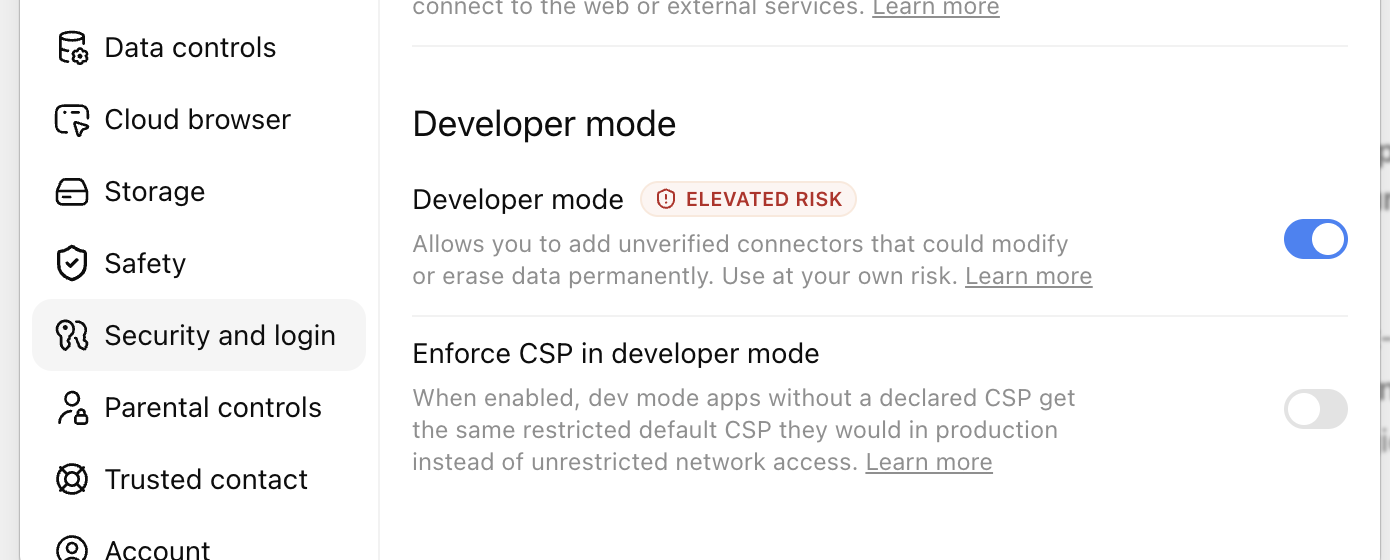
https://stats.training/mcp/…. The random part is the credential, so treat the whole URL like a password. - Open ChatGPT Settings On chatgpt.com, open your profile menu and choose Settings. Select Security and login in the left sidebar.
- Turn on developer mode Scroll to the Developer mode section and turn on Developer mode. ChatGPT labels it Elevated risk because unverified connectors can contain write or delete actions. stats.training itself is read-only.
- Open Plugins and click the add button Go directly to chatgpt.com/plugins. Stay on the Plugins tab, then click the + button beside the search box.
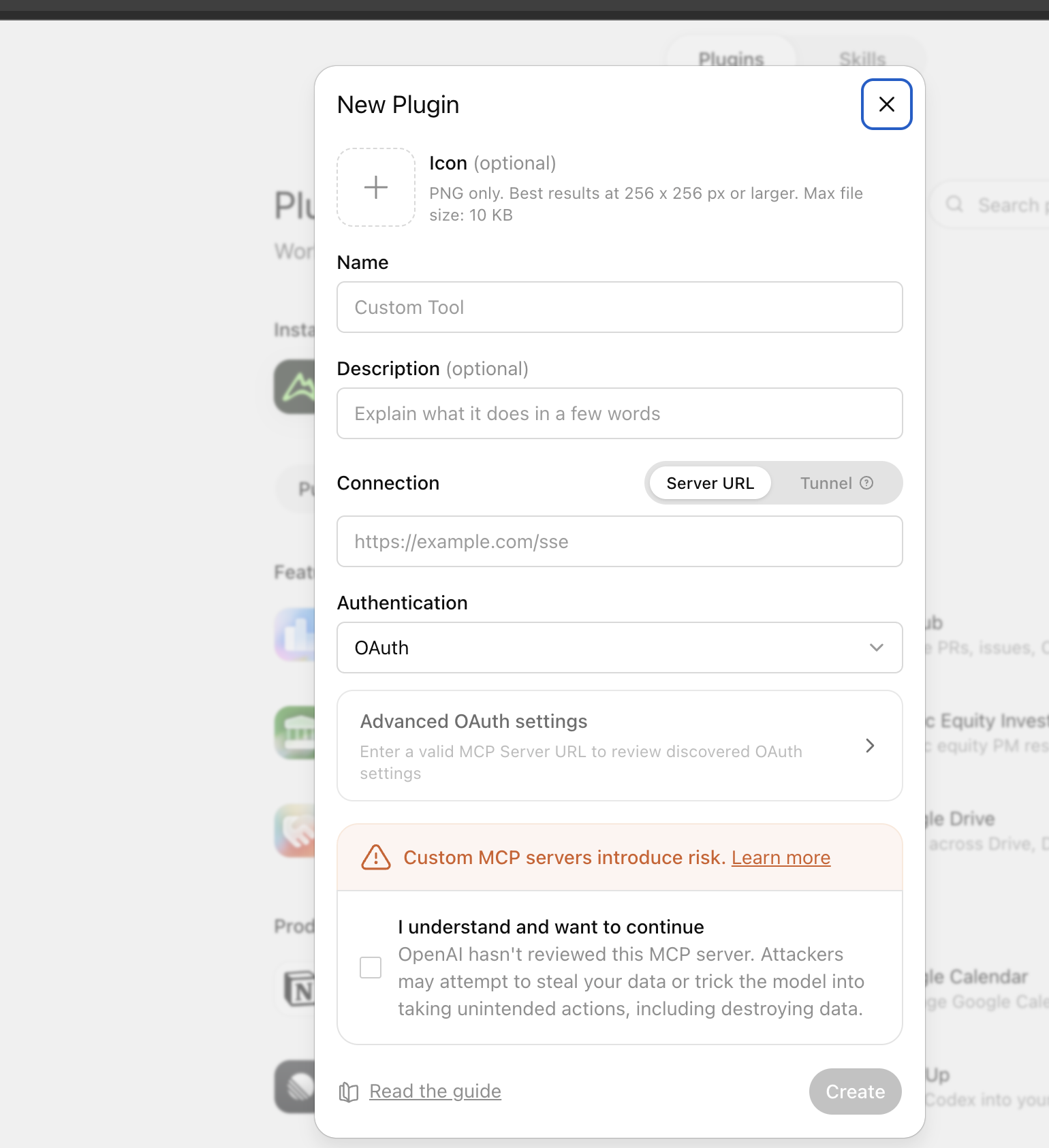
- Complete the New Plugin form Use Server URL, paste the full private stats.training link into Connection, and change Authentication from its default to No authentication. The exact value for every field is listed below.
-
Accept the warning and create it
Check I understand and want to continue after confirming the URL begins with
https://stats.training/mcp/. Click Create. The plugin will appear under your personal plugins.
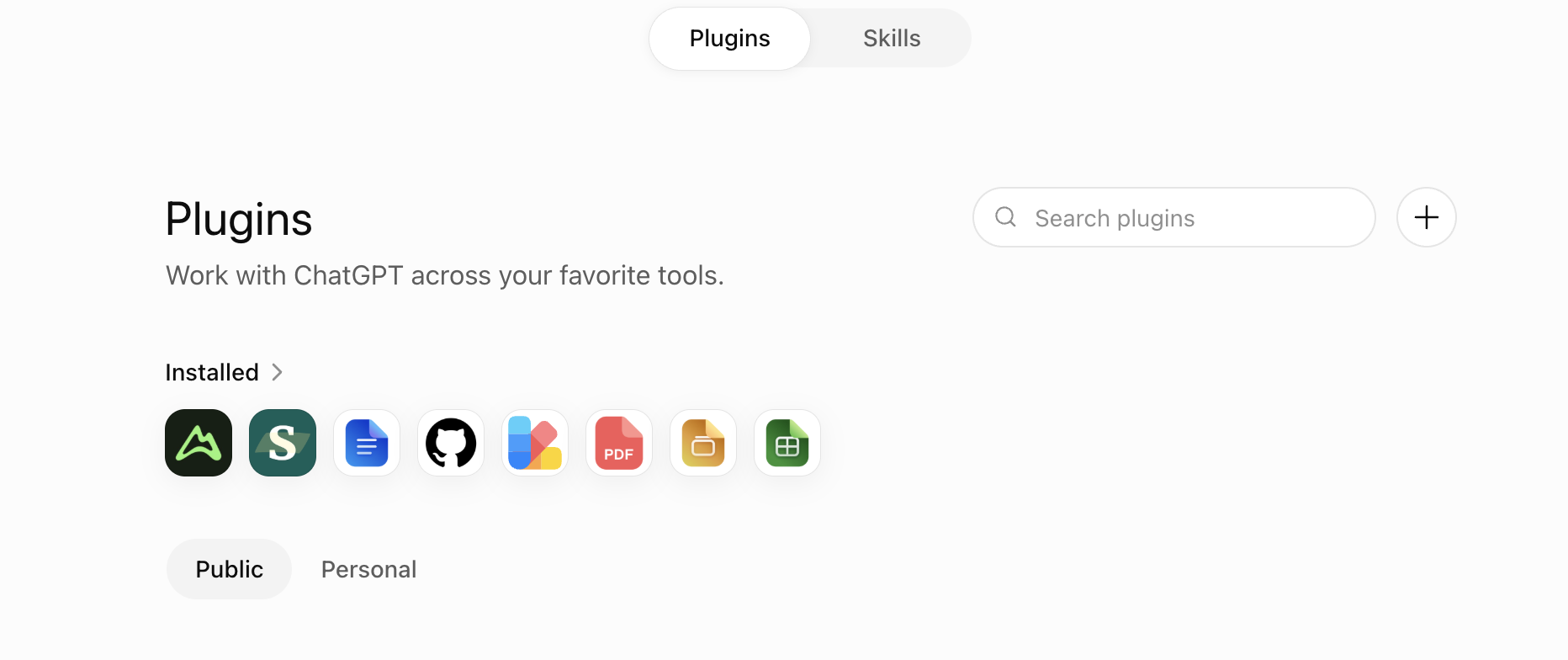
What to enter in each field
- Icon
- Optional. Skip it. If you add one, ChatGPT currently requires a PNG, recommends 256 × 256 px or larger, and limits the file to 10 KB.
- Name
- Use Garmin or Garmin · stats.training. If your stats.training account is connected to Strava instead, use Strava.
- Description
- Optional. Suggested text: Read-only training, sleep and recovery data from stats.training.
- Connection
- Keep Server URL selected. Do not choose Tunnel; stats.training is already a public HTTPS MCP server.
- Server URL
- Paste the complete private link from your stats.training account, including the token at the end:
https://stats.training/mcp/… - Authentication
- Open the dropdown and choose No authentication. Do not leave OAuth selected. Your private token is already part of the server URL.
- Advanced OAuth settings
- Leave this alone. It is not used when Authentication is set to No authentication.
- Risk confirmation
- Check I understand and want to continue only after verifying the URL is your stats.training link. ChatGPT shows this warning for every unreviewed MCP server; stats.training exposes read-only tools.
- Select it in a new chat Start a new conversation. Open ChatGPT's tools or plugins menu and select your Garmin or Strava plugin. You can also name the plugin in your prompt.
- Ask a question that needs your data Try: “Using my Garmin data, compare my sleep, HRV and training load over the last seven days. Should I do a hard session today?” ChatGPT should show the connector calls as it gathers the numbers.
Business and Enterprise workspaces
If you use a personal ChatGPT Pro account, skip this section. Managed workspaces add one layer because an admin controls which external plugins and MCP servers can be introduced.
ChatGPT Business
Only workspace admins and owners can enable developer mode and approve a custom MCP plugin. Once enabled, use the same Plugins page and + button shown above. Workspace policy may require the admin to publish or approve it before other members can use it.
Enterprise and Edu
An admin first grants developer-mode access under Workspace settings → Permissions & Roles → Connected Data. Once authorized, a user enables the personal toggle at Settings → Security and login → Developer mode and follows the same plugin flow above. Only an admin or owner can publish it to the workspace.
If it does not work
There is no Developer mode toggle
Check Settings → Security and login on chatgpt.com, not the mobile app. On a personal account, confirm you have ChatGPT Pro. On Business, Enterprise or Edu, ask the workspace admin whether your role is allowed to add custom plugins.
There is no + button on the Plugins page
Confirm developer mode is on, then reload chatgpt.com/plugins. If the button is still absent, your plan or workspace role cannot add personal plugins. Business workspaces restrict this to admins and owners; Enterprise/Edu requires an admin grant.
Create stays disabled or the server URL fails
Paste the exact HTTPS URL from your stats.training account, including the private token at the end. Choose No authentication, check the risk confirmation box, and make sure the subscription and Garmin/Strava connection are active. If it still fails, check stats.training status.
The plugin exists, but ChatGPT does not use it
Start a new chat and explicitly select the plugin from the tools menu. Agent mode does not currently use custom MCP plugins. Regular chat is the simplest place to test; Deep Research supports them only for read/fetch actions.
Can I set this up on my phone?
Not currently. OpenAI documents custom MCP plugins as web-only. Add and use it from ChatGPT in a desktop browser.
One security detail worth remembering
Developer mode sounds more dramatic than this connector is. stats.training exposes read-only tools: ChatGPT can request your training numbers, but it cannot edit Garmin, delete an activity, or push a workout to your watch.
The private URL is still a credential. Put it in the MCP endpoint field, never in the body of a chat. If it leaks, regenerate the link from your stats.training account; the old one stops working immediately.
Sources and last check
This walkthrough and the live screenshot above were checked on July 24, 2026. OpenAI still labels developer mode and full MCP support as beta. Its written Help page may show an older Settings path while the product UI rolls out.
Get your private connector link.
Connect Garmin or Strava once, then follow the steps above. $10/month, cancel any time.